How to Use the Isometric Back to School Illustration V1 in Real Design Workflows
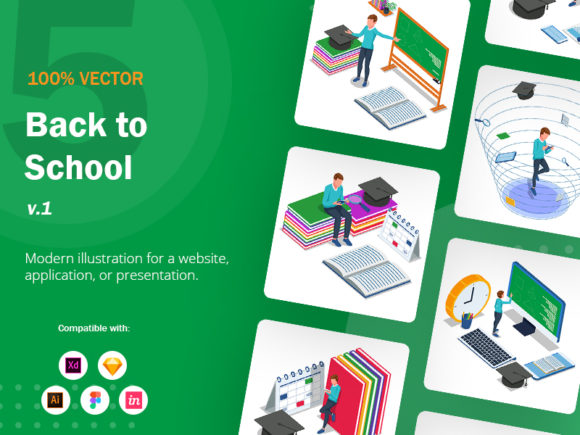
When you are building a landing page, a presentation, or a mobile app interface, the visual assets you choose directly affect how users perceive your brand. The Isometric Back to School Illustration V1 is not just a decorative image. It is a modular, vector-based illustration system designed to fit into professional production pipelines from the first concept sketch to the final deployment. Understand what this set offers, where it integrates with your existing tools, and how to customize it for consistent, high-quality output.
What the Isometric Back to School Illustration V1 Actually Contains
The product is a collection of five complete illustrations in an isometric style, each centered on a back-to-school theme. You receive the same artwork in multiple native and web-friendly formats: Ai, Sketch, XD, Figma, EPS, SVG, Invision, JPG, and PNG. Each file is 5000 × 5000 pixels at 300 DPI, which gives you room to crop, resize, or print without degradation. Because every shape in the illustration is a separate vector object, you can change colors, swap elements, and combine components from different scenes to create a custom composition that fits your brand identity.
For a designer, developer, or marketer, having SVG code included means you can drop the illustration directly into a web page without raster fallback issues. The layered organization inside each file lets you turn visibility on and off, isolate backgrounds, or export specific parts for use in micro-interactions.
Where This Illustration Fits in a Design or Marketing Workflow
Illustrations serve different purposes at different stages of a project. The Isometric Back to School set is versatile enough to be used before, during, or after your main production work.
Before the Project Starts: Moodboards and Conceptual Validation
During the planning phase, you often need to communicate a visual direction to stakeholders or clients. Instead of describing a style in words, you can place one of the included JPG or PNG files into a moodboard or a wireframe. Because the illustrations are isometric and school-themed, they immediately convey structure, learning, and progress. This is especially useful if you are designing an educational platform, a course catalog, or a productivity app aimed at students or lifelong learners. You can test color palettes by modifying a shape in the Ai or Figma file before committing to a full UI theme.
During the Build: Direct Integration into Layouts and Components
When you move into actual production, the vector formats become your primary asset. If you work in Figma, you can import the .fig file and paste the illustration directly into your frame. Because every shape is a separate layer, you can mask parts, apply component overrides, or create interactive prototypes where elements animate on hover. For Sketch users, the same applies with symbols and overrides. In Adobe XD, you can use the repeat grid or auto-animate features to create transitions between different scenes.
For web developers, the SVG code lets you embed the illustration inline. You can then use CSS to change fill colors on scroll, or JavaScript to trigger individual paths. This turns a static illustration into a dynamic storytelling element. If your team uses version control (Git), the SVG files are text-based and easy to diff, so changes are trackable.
After Launch: Updates, A/B Testing, and Repurposing
Once a site or app is live, you may need to refresh the visuals without a full redesign. Because the Isometric Back to School collection includes background layers separated from foreground elements, you can swap out the background color or replace a desk object with a different one from another file in the set. This allows you to run A/B tests on hero sections: one version with a blue-tinted classroom and another with a warm-toned library setup, for instance, without recreating the artwork from scratch.
For recurring campaigns, such as back-to-school promotions each year, you can reuse the same base illustration, change the color scheme to match the current season, and update text overlays. This saves significant production time and maintains visual consistency across years.
Compatibility with Your Existing Toolchain
The product supports seven native design tools plus universal formats. Here is how it interacts with common workflows:
- Adobe Illustrator (Ai) – Full layer control, direct editing of paths and fills, perfect for print-ready files.
- Sketch – Symbols and text overrides work seamlessly; ideal for UI kits.
- Figma – Components and auto-layout can be applied. Team libraries can store the illustration as a shared asset.
- Adobe XD – Repeat grid and prototype transitions benefit from isometric scenes.
- Invision – Upload the PNG or JPG for clickable prototypes without vector editing needs.
- EPS – Legacy or cross-platform import into tools like CorelDRAW or Affinity Designer.
- SVG – Direct embedding in HTML, customizable via CSS, and lightweight for fast loading.
Because the set uses five distinct scenes, you can assign different scenes to different pages or devices. For example, use the classroom scene for the desktop hero, the library scene for the tablet version, and the bus scene for mobile headers. All maintain the same isometric angle and line quality, so the visual identity remains cohesive.
Customization Without Breaking Consistency
One of the most practical features of this illustration set is the ability to change colors in each shape independently. For a brand manager, this means you can align the illustration with your existing color palette without hiring an illustrator. For a freelancer, it means you can reuse the same asset for different clients by simply adjusting a few hues.
To maintain visual harmony, start by defining a target palette (three to five colors). Open the Ai or Figma file, select the background shape, and adjust it to your brand’s lightest shade. Then, for mid-tone objects (bookshelves, desks, backpacks), apply your secondary colors. Use your accent color sparingly on focal elements like a school bus or a clock. The isometric style naturally guides the eye, so you do not need to recolor every single shape—just the ones that support your hierarchy.
Combining Elements Across Scenes
The product description explicitly mentions that you can combine different elements to create your own composition. This is not a fixed set of five static images; it is a library of objects. If you need a scene that shows a student studying near a window, you can take the window from illustration A, the desk from illustration B, and the bookshelf from illustration C, paste them into a single document, and adjust the layering. Because all objects share the same isometric grid, they will align naturally without perspective mismatches.
Organization and Efficiency in a Production Environment
When you work with multiple assets across teams, file organization matters. The files in this set come properly organized with background layers separated from foreground elements. This means you can quickly turn off the background if you want to place the illustration on a gradient or a photo. The layers are also named logically, so you do not waste time hunting for a specific shape.
For teams using shared cloud libraries (Figma Team Libraries, Adobe Creative Cloud Libraries), you can publish the illustration as a component. Every member of your team then accesses the same source. When you update the color in the master file, all instances across every page update automatically. This prevents the common problem of outdated or inconsistent assets.
Quality Control and Long-Term Use
With 5000 × 5000 pixel resolution, the illustrations can be used for both screen and print. For a webinar slide deck, you can import the PNG into PowerPoint or Keynote. For a printed brochure, the EPS or Ai file handles CMYK conversion without loss. Because the vectors are clean and not traced from bitmaps, you will not encounter unexpected anchor points or distorted curves when scaling.
Long-term use requires that you keep the source files accessible. Store the Ai, Figma, or Sketch files in a project repository or cloud drive. If you return to a project after six months, you can reopen the same file and make adjustments without redrawing anything. The inclusion of SVG code also future-proofs the asset for web use, as SVG is an open standard supported by all modern browsers and likely to remain so for years.
Practical Implementation Tips
- Start with the scene that best matches your content theme. If your app is about study planning, the desk-and-books scene works well. If it is about collaboration, use the classroom scene with multiple elements.
- Use the JPG and PNG files for quick mockups. Drop them into wireframes or slide decks when you need immediate visual context.
- Edit vector shapes in batches. In Illustrator or Figma, group all shapes that share the same color and change them at once using global edit or style overrides.
- Export specific parts for smaller UI elements. For example, extract the backpack icon from the full scene and use it as a tooltip icon or a notification badge.
- Pair with simple backgrounds. Isometric illustrations work best when the surrounding layout is clean and typography is minimal. Let the artwork carry the visual weight.
Workflow Example: Building a Course Landing Page
Imagine you are a freelance designer creating a landing page for an online tutoring service. You open the Figma file from the Isometric Back to School set, select the scene with the student and laptop, and duplicate it for multiple sections. For the hero section, you use the full illustration with a brand-colored background. For the features section, you crop the illustration to show only the laptop and notebook, placing them next to bullet points. For the testimonial area, you use the same scene but desaturate it to 30% opacity as a background watermark. All three uses come from the same source file, yet they feel distinct and purposeful.
Because the files are vector and well-organized, the entire page design—from import to export—takes under two hours. You then export SVG for the web developer and PNG for the client’s presentation. The developer can inspect the SVG, see the layer names, and apply scroll-triggered animations. The client receives a high-resolution preview that matches the final build exactly.
Why Process-Oriented Designers Choose Modular Illustrations
When every project demands unique visuals, a modular illustration set reduces redundant work. Instead of commissioning or creating new artwork for each project, you adapt and combine existing components. The Isometric Back to School Illustration V1 gives you a solid foundation with enough flexibility to fit distinct brand needs. By treating the files as a system rather than a single image, you gain speed, consistency, and control over the final output. Whether you are a solo creator managing multiple client projects or a marketer aligning visuals across campaigns, this approach saves time and improves quality.